NullDraft / Case study
AI-assisted screenshot documentation
From screenshots to reports, in flow.
I designed and built NullDraft end to end: a desktop workspace that turns instruction files into editable steps, guides screenshot capture, and exports professional, figure-rich reports.
Problem & goal
Turn documentation work into evidence as it happens.
Creating clear documentation usually means recreating a completed process from memory, then searching for the right screenshots and writing the report afterward.
NullDraft keeps the instructions, evidence, annotations, and export in one guided workflow, so the report is built alongside the work.
Architecture & technology / 01
A local-first desktop tool built for documentation work.
NullDraft combines Electron, a local FastAPI service, and configurable AI providers so capture, editing, and export can remain on the user’s device by default.
- Electron
- A desktop shell keeps the capture flow close to the work itself, while automatically starting and checking the local backend.
- React + TypeScript
- The interface manages project steps, review, capture, annotation, and export in one consistent workflow.
- FastAPI
- A local API handles instruction parsing, image analysis, document enhancement, and report generation.
- Flexible AI providers
- Mistral, OpenAI, Anthropic, and Gemini can extract steps, understand screenshots, produce captions, run OCR, and write report narrative.
- Report engine
- The export layer produces PDF, DOCX, LaTeX, Markdown, and JSON with automatic figure numbering, templates, and branding.
Documentation system / 02
AI supports the process; the author stays in control.
AI extracts the first draft of the steps, then helps describe evidence, write captions, run OCR, and optionally add report narrative, while every result remains editable.
01 / Define
Extract the work into steps
Import a PDF, TXT, or DOCX instruction file and let AI turn it into an editable sequence of steps.
02 / Review
Refine the generated plan
Review, reorder, add, or remove steps, then tune the titles, report captions, and descriptions before capture.
03 / Capture
Collect proof in context
A floating desktop HUD keeps the current step visible while you capture a display, window, full screen, or saved region.
04 / Annotate
Direct the reader’s eye
Add arrows, highlights, text, and markers, then use AI to describe the screenshot, generate a caption, or extract visible text.
05 / Export
Export a figure-rich report
Apply a template and branding, optionally generate an introduction and conclusion, then export PDF, DOCX, LaTeX, Markdown, or JSON.
Demo / 03
Capture evidence without losing your place.
The floating HUD keeps the current instruction visible over the desktop, so each screenshot is attached to the right step at the exact moment it is needed.
Landing page / 04
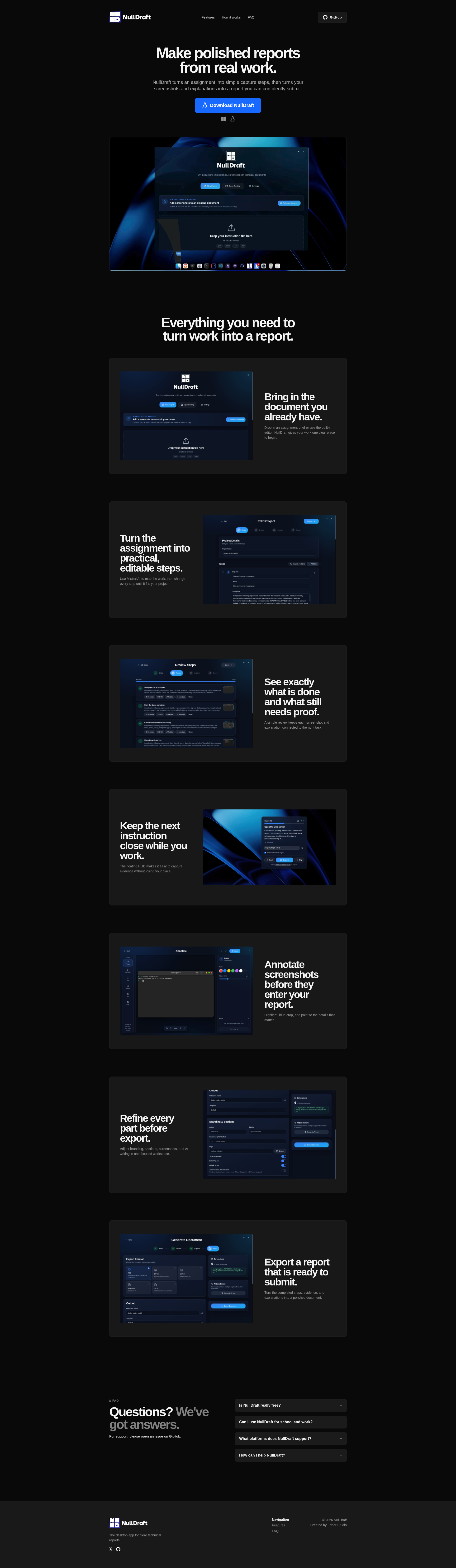
From instructions to reports, in flow.
Product screens / 05
Turn instructions into evidence, one step at a time.
NullDraft connects AI step extraction, review, guided capture, annotation, and report delivery, so documentation is created alongside the work rather than reconstructed afterward.
Workspace 01
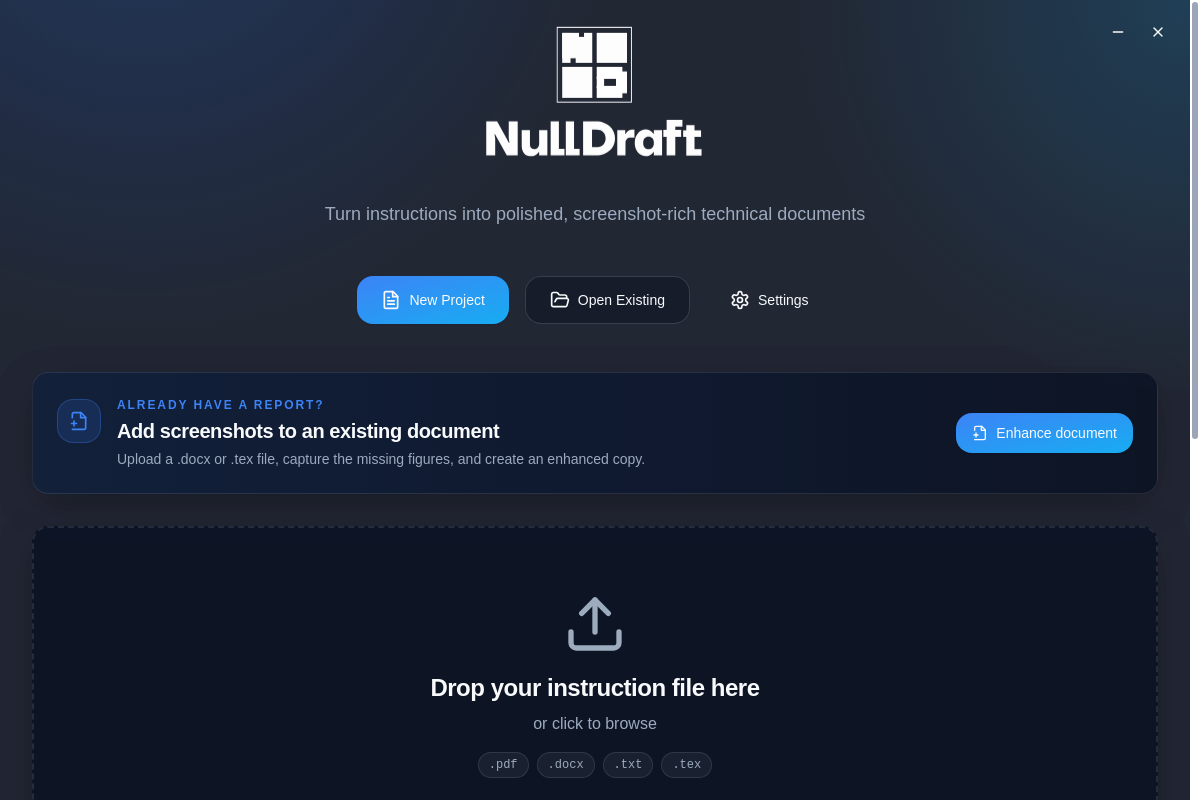
Start with the material you have
Create a project from scratch, import an instruction file, or enhance an existing DOCX or LaTeX document with missing figures.
Workspace 02
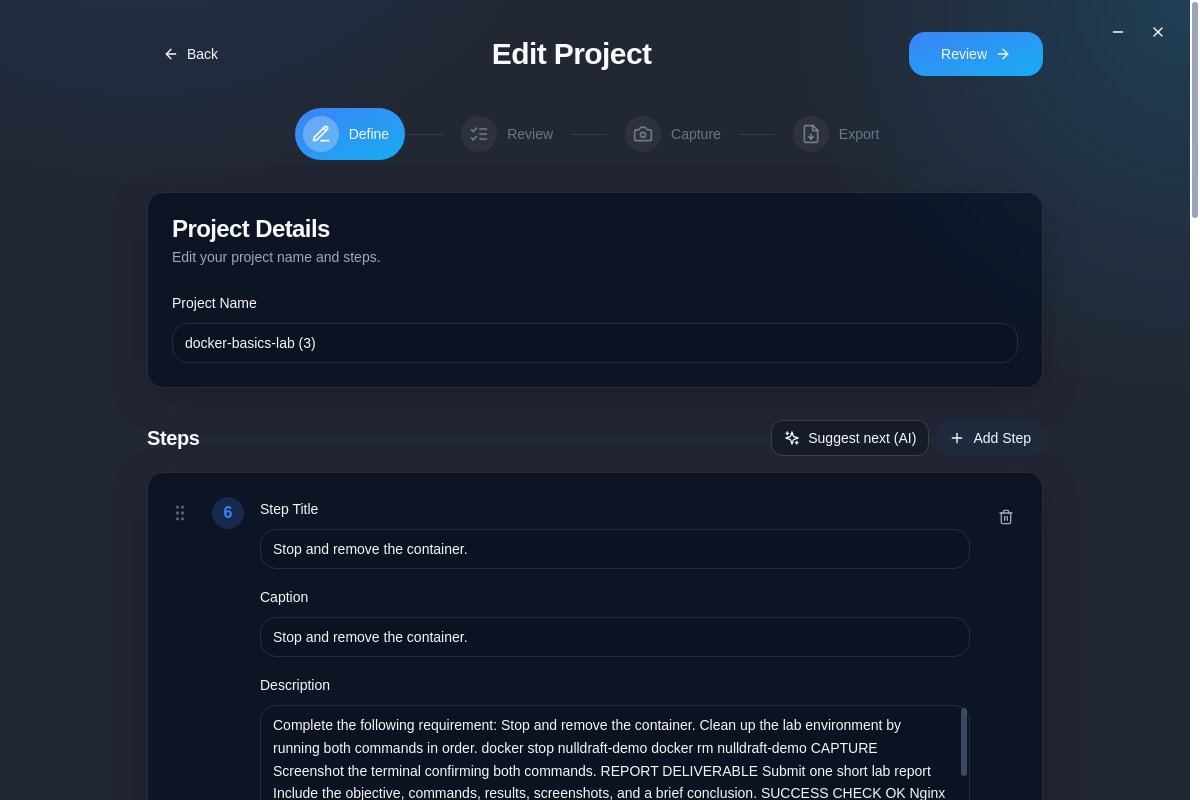
AI-extracted steps, ready to edit
An imported instruction file becomes a structured list of step titles, descriptions, and report-ready captions that the author can refine.
Workspace 03
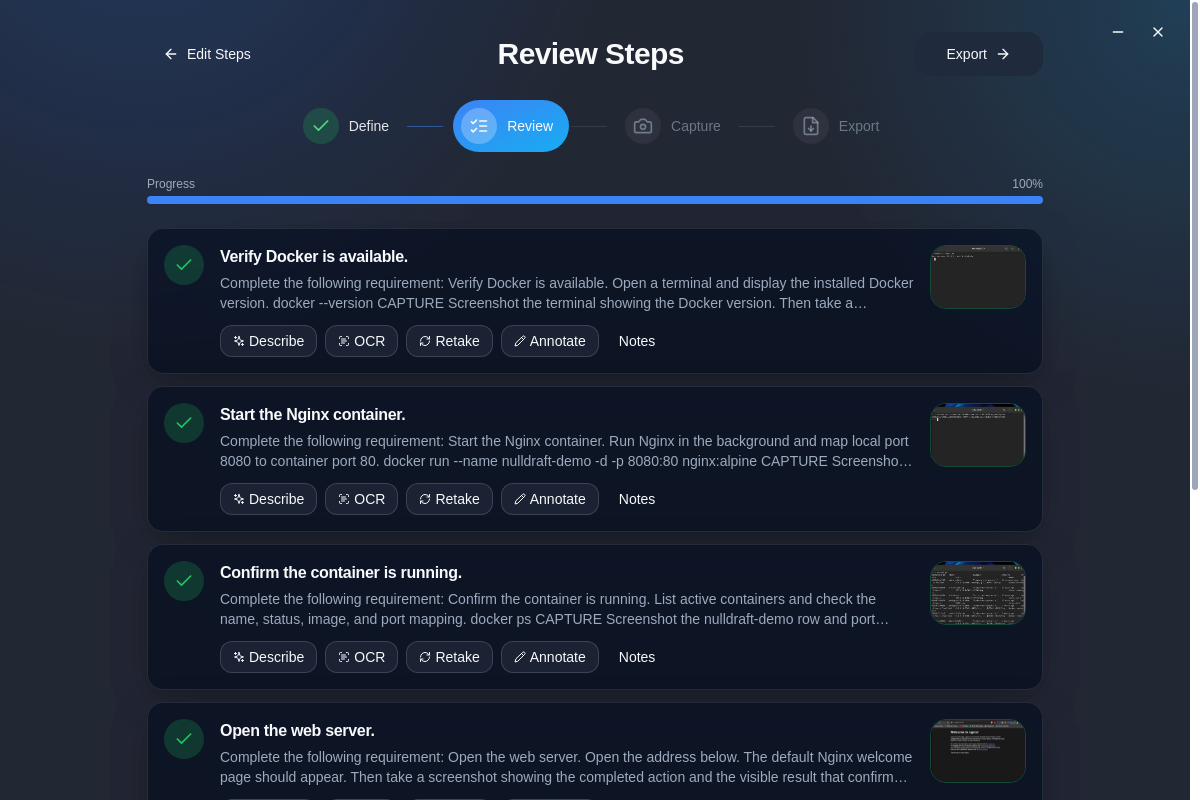
Review before capture
The review pass keeps every requirement visible and makes the project ready for screenshots, annotations, OCR, and AI descriptions.
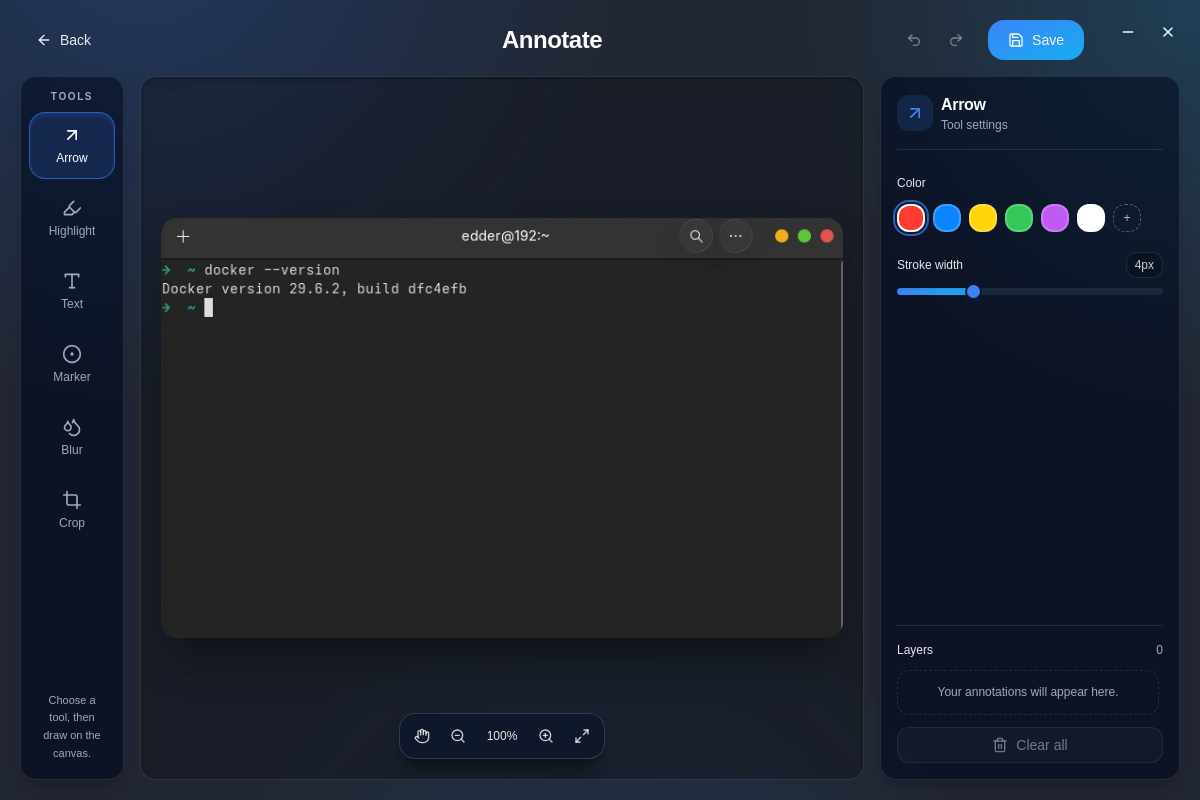
Workspace 04
Make screenshots instructional
An annotation canvas adds clear visual signals to a captured screen instead of leaving the reader to infer the important detail.
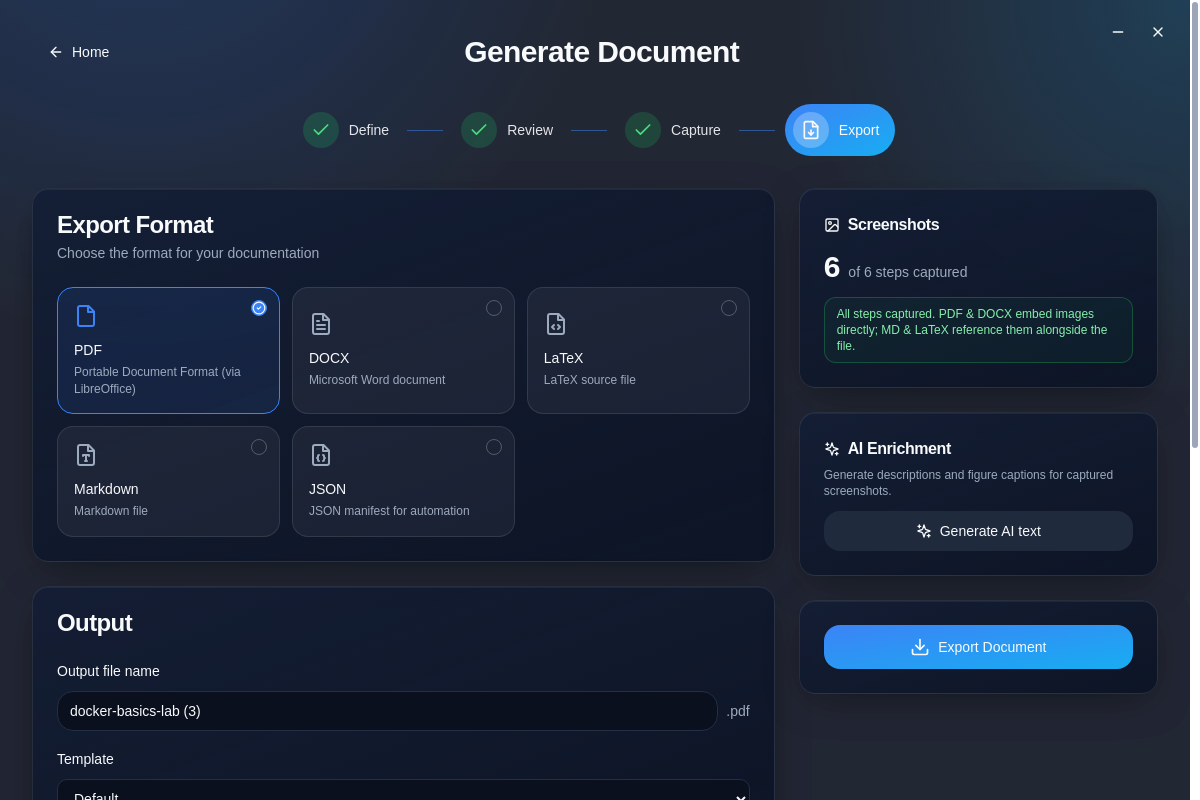
Workspace 05
Export for the next system
Choose PDF, DOCX, LaTeX, Markdown, or JSON depending on whether the report is being submitted, edited, published, or automated.
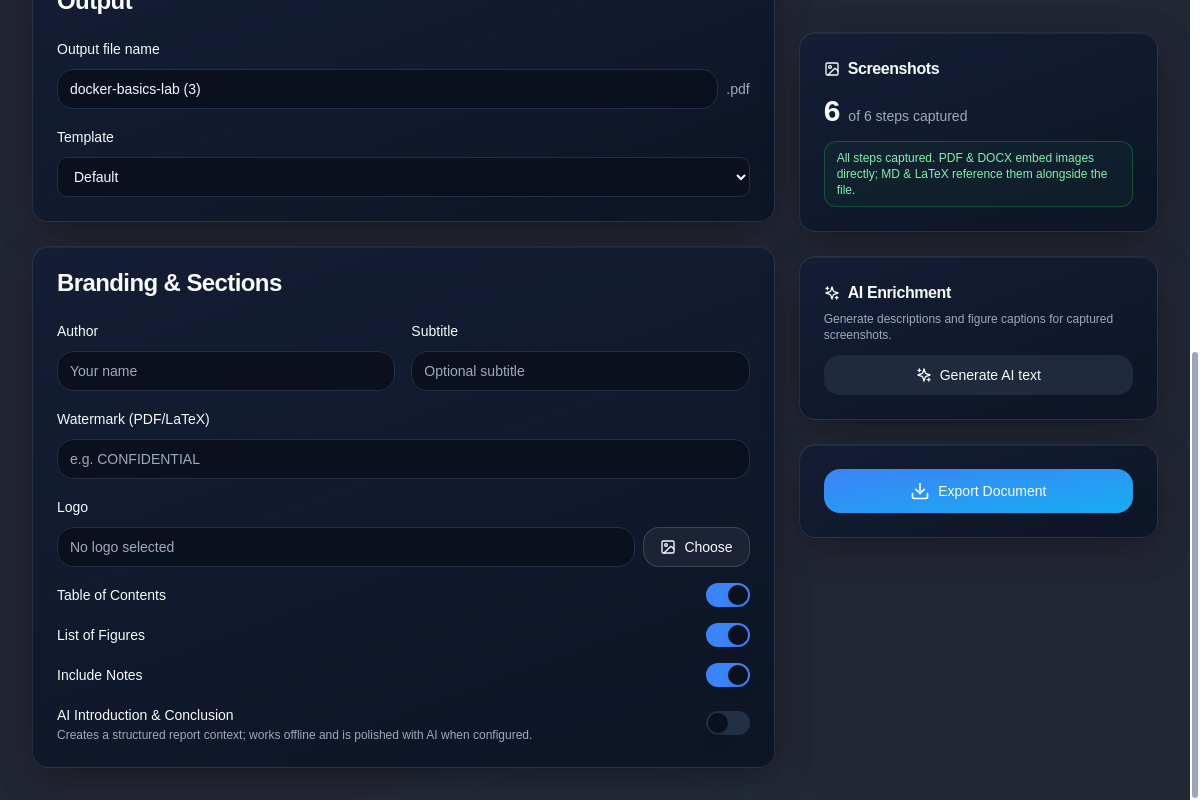
Workspace 06
Control the finished report
Templates, author details, watermarks, logos, tables of contents, lists of figures, and optional AI-written narrative make the output presentation-ready.
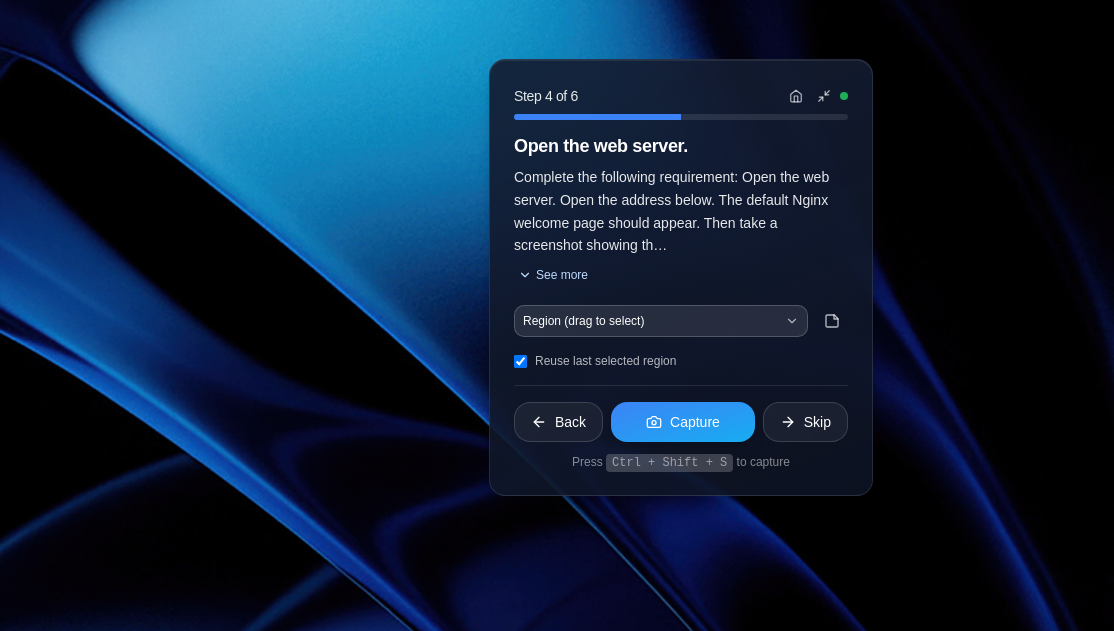
Workspace 07
Capture without losing your place
The lightweight HUD follows the task on the desktop, presents the current instruction, and records the screenshot as evidence for that exact step.
Implementation notes
Clear evidence, without the documentation backlog.
- Import a PDF, TXT, or DOCX instruction file and let AI generate an editable list of practical steps, captions, and descriptions.
- Use the floating HUD to capture full screens, windows, displays, or reusable regions, then annotate each screenshot as visual proof.
- Export branded, automatically numbered reports, or enhance an existing DOCX or LaTeX document by filling its figure placeholders with captured evidence.